一、前言
近日在整理以前拍的照片,想做一本相册,中间遇到了许多坑,记录一下。
二、找到旧照片原图
首先是找到旧的照片,由于换了好几部手机,从红米K20Pro→K30s→小米11 Ultra→小米15,在2021年以前,由于没有整NAS,都是定期手动备份到机械硬盘里面。2021年以后有了NAS以后,就变懒了,都让软件自动上传到NAS上,还有一份小米云同步自动同步。问题恰恰就出在这里,由于以前的手机有的是128g,有的是256g,到后面手机存储空间就不够了,不知怎么,小米把本地手机里面的原图删了,换成了压缩后的图片。就这样,NAS中的原图也被替换成了压缩后的图片。这挺恶心的,近日整理照片的时候才发现原图没了。最后想到的解决办法是从小米云同步上把以前的照片下载下来,这是个大坑,这软件的PC端非常卡,体验非常不好。最后我选择整个相册都下载,只能烧一点小米CDN的流量来泄愤了。
三、按照月份分类整理照片
其次是按照月份分类整理照片,我的方法是年份-月份-相册名,
├─2021-01 │ ├─Camera │ ├─Picture │ ├─ScreenShot │ ├─Video │ └─WeiXin ├─2021-02 │ ├─Camera │ ├─Picture │ ├─ScreenShot │ ├─Video │ └─WeiXin ├─2021-03 ......图片分别来自手机的/DCIM/Camera、/DCIM/Screenshots、/Pictures/WeiXin目录,让AI帮忙写了一个python脚本:
import osimport reimport timeimport calendarimport shutilimport platformimport subprocessfrom datetime import datetime
def set_file_timestamps(file_path, target_time): """设置文件的创建时间和修改时间""" timestamp = target_time.timestamp()
try: if platform.system() == "Windows": # Windows系统使用PowerShell设置时间 time_str = target_time.strftime("%Y-%m-%d %H:%M:%S") powershell_cmd = ( f'(Get-Item "{file_path}").CreationTime = "{time_str}"; ' f'(Get-Item "{file_path}").LastWriteTime = "{time_str}"' ) subprocess.run( ["powershell", "-Command", powershell_cmd], check=True, stdout=subprocess.PIPE, stderr=subprocess.PIPE, text=True ) elif platform.system() == "Darwin": # macOS # macOS使用SetFile和utime time_str = target_time.strftime("%Y%m%d%H%M.%S") subprocess.run( ["SetFile", "-d", time_str, "-m", time_str, file_path], check=True, stdout=subprocess.PIPE, stderr=subprocess.PIPE ) else: # Linux # Linux设置访问时间和修改时间 os.utime(file_path, (timestamp, timestamp))
return True except Exception as e: print(f"设置文件 {file_path} 时间时出错: {str(e)}") return False
def set_directory_timestamps(dir_path, year, month): """设置月份目录的创建时间和修改时间""" try: # 计算该月第一天和最后一天 first_day = datetime(year, month, 1, 0, 0, 0) last_day_date = calendar.monthrange(year, month)[1] last_day = datetime(year, month, last_day_date, 23, 59, 59)
if platform.system() == "Windows": # Windows系统使用PowerShell设置时间 first_day_str = first_day.strftime("%Y-%m-%d %H:%M:%S") last_day_str = last_day.strftime("%Y-%m-%d %H:%M:%S") powershell_cmd = ( f'(Get-Item "{dir_path}").CreationTime = "{first_day_str}"; ' f'(Get-Item "{dir_path}").LastWriteTime = "{last_day_str}"' ) subprocess.run( ["powershell", "-Command", powershell_cmd], check=True, stdout=subprocess.PIPE, stderr=subprocess.PIPE, text=True ) elif platform.system() == "Darwin": # macOS # macOS使用SetFile和utime first_day_str = first_day.strftime("%Y%m%d%H%M.%S") last_day_str = last_day.strftime("%Y%m%d%H%M.%S") subprocess.run(["SetFile", "-d", first_day_str, dir_path], check=True) os.utime(dir_path, (last_day.timestamp(), last_day.timestamp())) else: # Linux # Linux通过创建临时目录的方式设置 if os.path.exists(dir_path): temp_dir = dir_path + "_temp" os.rename(dir_path, temp_dir) os.makedirs(dir_path)
# 设置新目录时间 os.utime(dir_path, (first_day.timestamp(), last_day.timestamp()))
# 移动内容 for item in os.listdir(temp_dir): shutil.move(os.path.join(temp_dir, item), os.path.join(dir_path, item)) os.rmdir(temp_dir) else: os.makedirs(dir_path) os.utime(dir_path, (first_day.timestamp(), last_day.timestamp()))
return True except Exception as e: print(f"设置目录 {dir_path} 时间时出错: {str(e)}") return False
def process_images(source_dir): """处理指定目录下的图片文件""" # 支持的图片文件扩展名 image_extensions = ('.jpg', '.jpeg', '.png', '.gif', '.bmp', '.webp', '.heic') video_extensions = ('.mp4', '.mov', '.avi', '.mkv')
# 匹配mmexport开头的文件名正则表达式(简单形式) mmexport_simple_pattern = re.compile(r'^mmexport(\d+)\.(.+)$')
# 匹配mmexport开头的文件名正则表达式(复杂形式,带哈希) mmexport_complex_pattern = re.compile(r'^mmexport[a-f0-9]+_(\d+)\.(.+)$')
# 匹配wx_camera_开头的文件名正则表达式 wx_camera_pattern = re.compile(r'^wx_camera_(\d+)\.(.+)$')
# 匹配Screenshot开头的文件名正则表达式 screenshot_pattern = re.compile(r'^Screenshot_(\d{4})-(\d{2})-(\d{2})-(\d{2})-(\d{2})-(\d{2})-(\d+)_.*\.(.+)$')
# 匹配IMG_日期格式的文件 (如 IMG_20210417_145554.jpg) img_pattern = re.compile(r'^IMG_(\d{4})(\d{2})(\d{2})_(\d{6})\.(.+)$')
# 匹配MVIMG_日期格式的文件 (如 MVIMG_20210505_191758.jpg) mvimg_pattern = re.compile(r'^MVIMG_(\d{4})(\d{2})(\d{2})_(\d{6})\.(.+)$')
# 匹配VID_日期格式的文件 (如 VID_20210801_182018.mp4) vid_pattern = re.compile(r'^VID_(\d{4})(\d{2})(\d{2})_(\d{6})\.(.+)$')
# 遍历目录中的所有文件 for filename in os.listdir(source_dir): file_path = os.path.join(source_dir, filename)
# 只处理文件,不处理目录 if not os.path.isfile(file_path): continue
# 检查文件扩展名 file_ext = os.path.splitext(filename)[1].lower() is_image = file_ext in image_extensions is_video = file_ext in video_extensions
# 只处理图片和视频文件 if not (is_image or is_video): continue
# 检查文件名是否符合IMG_格式 img_match = img_pattern.match(filename) file_type = "img"
if not img_match: # 检查是否符合MVIMG_格式 mvimg_match = mvimg_pattern.match(filename) file_type = "mvimg"
if not img_match and not mvimg_match: # 检查是否符合VID_格式 vid_match = vid_pattern.match(filename) file_type = "vid"
if not img_match and not mvimg_match and not vid_match: # 检查是否符合mmexport简单格式 match = mmexport_simple_pattern.match(filename) file_type = "mmexport_simple"
if not img_match and not mvimg_match and not vid_match and not match: # 检查是否符合mmexport复杂格式(带哈希) match = mmexport_complex_pattern.match(filename) file_type = "mmexport_complex"
if not img_match and not mvimg_match and not vid_match and not match: # 检查是否符合wx_camera_格式 match = wx_camera_pattern.match(filename) file_type = "wx_camera"
if not img_match and not mvimg_match and not vid_match and not match: # 检查是否符合Screenshot格式 match = screenshot_pattern.match(filename) file_type = "screenshot"
if not img_match and not mvimg_match and not vid_match and not match: print(f"跳过非mmexport/wx_camera/screenshot/IMG_/MVIMG_/VID_格式文件: {filename}") continue
try: # 根据文件类型处理 if file_type == "img": # 从IMG_文件名中提取时间信息 year = int(img_match.group(1)) month = int(img_match.group(2)) day = int(img_match.group(3)) hour = int(img_match.group(4)[:2]) minute = int(img_match.group(4)[2:4]) second = int(img_match.group(4)[4:6]) extension = img_match.group(5)
img_datetime = datetime(year, month, day, hour, minute, second) new_filename = filename # IMG_文件不需要重命名 sub_dir_name = 'Camera' month_dir_name = img_datetime.strftime("%Y-%m")
elif file_type == "mvimg": # 从MVIMG_文件名中提取时间信息 year = int(mvimg_match.group(1)) month = int(mvimg_match.group(2)) day = int(mvimg_match.group(3)) hour = int(mvimg_match.group(4)[:2]) minute = int(mvimg_match.group(4)[2:4]) second = int(mvimg_match.group(4)[4:6]) extension = mvimg_match.group(5)
img_datetime = datetime(year, month, day, hour, minute, second) new_filename = filename # MVIMG_文件不需要重命名 sub_dir_name = 'Camera' month_dir_name = img_datetime.strftime("%Y-%m")
elif file_type == "vid": # 从VID_文件名中提取时间信息 year = int(vid_match.group(1)) month = int(vid_match.group(2)) day = int(vid_match.group(3)) hour = int(vid_match.group(4)[:2]) minute = int(vid_match.group(4)[2:4]) second = int(vid_match.group(4)[4:6]) extension = vid_match.group(5)
img_datetime = datetime(year, month, day, hour, minute, second) new_filename = filename # VID_文件不需要重命名 sub_dir_name = 'Video' month_dir_name = img_datetime.strftime("%Y-%m")
elif file_type == "screenshot": # 从文件名中提取时间信息 year = int(match.group(1)) month = int(match.group(2)) day = int(match.group(3)) hour = int(match.group(4)) minute = int(match.group(5)) second = int(match.group(6)) extension = match.group(8)
img_datetime = datetime(year, month, day, hour, minute, second) new_filename = filename # Screenshot文件不需要重命名 sub_dir_name = 'ScreenShot' month_dir_name = img_datetime.strftime("%Y-%m")
else: # 处理微信导出的文件 # 提取时间戳 timestamp = int(match.group(1)) extension = match.group(2)
# 转换时间戳为datetime对象 # 处理毫秒级时间戳 if timestamp > 10**12: # 大于1e12的认为是毫秒级 timestamp = timestamp / 1000 img_datetime = datetime.fromtimestamp(timestamp)
# 生成新文件名 if file_type == "mmexport_simple" or file_type == "mmexport_complex": new_filename = f"mmexport_{img_datetime.strftime('%Y%m%d_%H%M%S')}.{extension}" sub_dir_name = 'WeiXin' else: # wx_camera new_filename = f"wx_camera_{img_datetime.strftime('%Y%m%d_%H%M%S')}.{extension}" sub_dir_name = 'WeiXin'
month_dir_name = img_datetime.strftime("%Y-%m")
# 重命名文件(如果不是Screenshot类型) new_file_path = os.path.join(source_dir, new_filename) if file_path != new_file_path: if os.path.exists(new_file_path): print(f"文件已存在,跳过重命名: {new_filename}") else: os.rename(file_path, new_file_path) print(f"重命名: {filename} -> {new_filename}") file_path = new_file_path # 更新文件路径
# 设置文件的创建时间和修改时间(如果不是IMG_、MVIMG_或VID_类型) if file_type not in ["img", "mvimg", "vid"]: if set_file_timestamps(file_path, img_datetime): print(f"已设置文件时间: {new_filename} -> {img_datetime}") else: # 对于IMG_、MVIMG_和VID_文件,仍然设置时间戳 if set_file_timestamps(file_path, img_datetime): print(f"已设置文件时间: {new_filename} -> {img_datetime}")
# 创建月份目录 month_dir_path = os.path.join(source_dir, month_dir_name, sub_dir_name)
# 确保月份目录存在并设置时间 if not os.path.exists(month_dir_path): os.makedirs(month_dir_path) print(f"创建月份目录: {month_dir_name}/{sub_dir_name}")
# 设置月份目录时间属性 set_directory_timestamps(month_dir_path, img_datetime.year, img_datetime.month)
# 移动文件到月份目录 dest_path = os.path.join(month_dir_path, new_filename) if not os.path.exists(dest_path): shutil.move(file_path, dest_path) print(f"移动文件到: {month_dir_name}/{sub_dir_name}/{new_filename}") else: print(f"目标文件已存在,跳过移动: {month_dir_name}/{sub_dir_name}/{new_filename}")
except Exception as e: print(f"处理文件 {filename} 时出错: {str(e)}")
if __name__ == "__main__": import argparse
parser = argparse.ArgumentParser(description='处理图片文件,重命名、设置时间并按月份归档') parser.add_argument('directory', help='要处理的图片所在目录') args = parser.parse_args()
# 验证目录是否存在 if not os.path.isdir(args.directory): print(f"错误: 目录 '{args.directory}' 不存在或不是一个有效的目录") else: print(f"开始处理目录: {args.directory}") process_images(args.directory) print("处理完成")1. 脚本概述
这是一个用于整理和归档图片及视频文件的Python脚本,主要功能包括文件重命名、时间戳设置和按月份分类归档。
2. 核心功能
文件处理能力
-
支持格式:处理多种图片格式(.jpg, .jpeg, .png, .gif, .bmp, .webp, .heic)和视频格式(.mp4, .mov, .avi, .mkv)
-
文件类型识别:能够识别并处理以下命名格式的文件:
- 微信导出文件(mmexport开头)
- 微信相机文件(wx_camera_开头)
- 截图文件(Screenshot_开头)
- 相机照片(IMG_、MVIMG_开头)
- 视频文件(VID_开头)
文件重命名
- 对微信导出的文件进行标准化重命名,格式为:
mmexport_YYYYMMDD_HHMMSS.ext或wx_camera_YYYYMMDD_HHMMSS.ext - 其他格式文件保持原文件名不变
时间戳管理
- 精确时间设置:根据文件名中的时间信息设置文件的创建时间和修改时间
- 跨平台支持:针对Windows、macOS和Linux系统采用不同的时间设置方法
- 目录时间设置:为创建的月份目录设置合理的起止时间
文件归档组织
-
按年月创建目录结构(如:2023-05)
-
根据文件类型分类存储:
- Camera:相机拍摄的照片
- Video:视频文件
- ScreenShot:截图文件
- WeiXin:微信相关文件
3. 技术特点
智能解析
- 能够解析多种时间格式,包括时间戳和日期字符串
- 自动处理毫秒级时间戳转换
跨平台兼容
- 针对不同操作系统(Windows、macOS、Linux)采用相应的文件操作方法
- 使用PowerShell(Windows)、SetFile(macOS)和utime(Linux)等系统工具
安全机制
- 检查文件是否已存在,避免重复操作
- 异常处理机制,确保单个文件处理失败不影响整体流程
4. 使用场景
该脚本特别适用于:
- 整理手机导出的照片和视频文件
- 规范化管理大量杂乱的媒体文件
- 按时间顺序归档个人照片和视频资料
- 恢复文件的正确创建时间信息
5. 使用方法
通过命令行参数指定需要处理的目录:
python 整理图片.py [目录路径]四、为打印的照片添加水印
由于想把每一年的照片精选100张出来,修一修打印出来装订成册,所以想把需要打印的照片添加一些水印,包括时间、地点、设备、参数等。
了解了一下打印的尺寸,主要有:
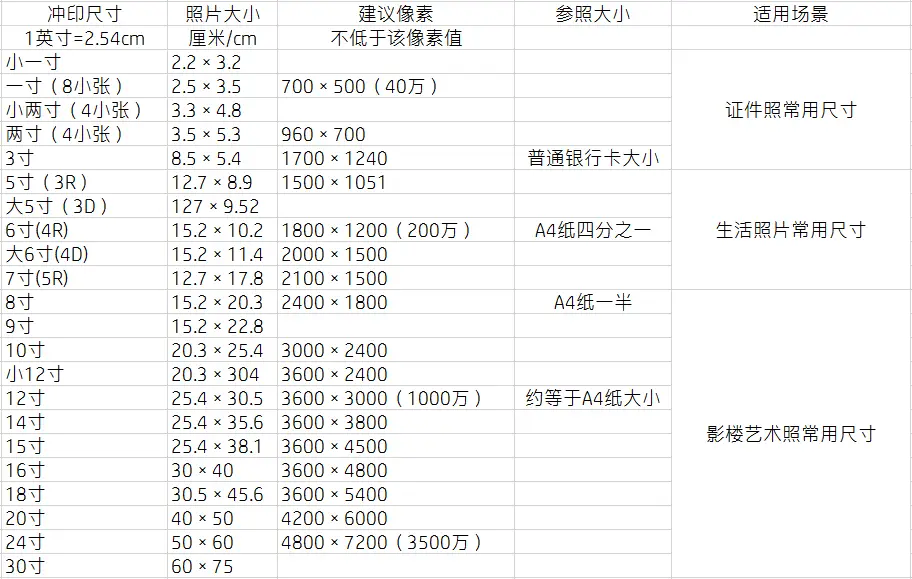
手机拍摄的照片比例一般是4:3,如果选择大6寸打印是刚刚好的,但是如果在下方加了一条水印,打印出来长边就会有白边,
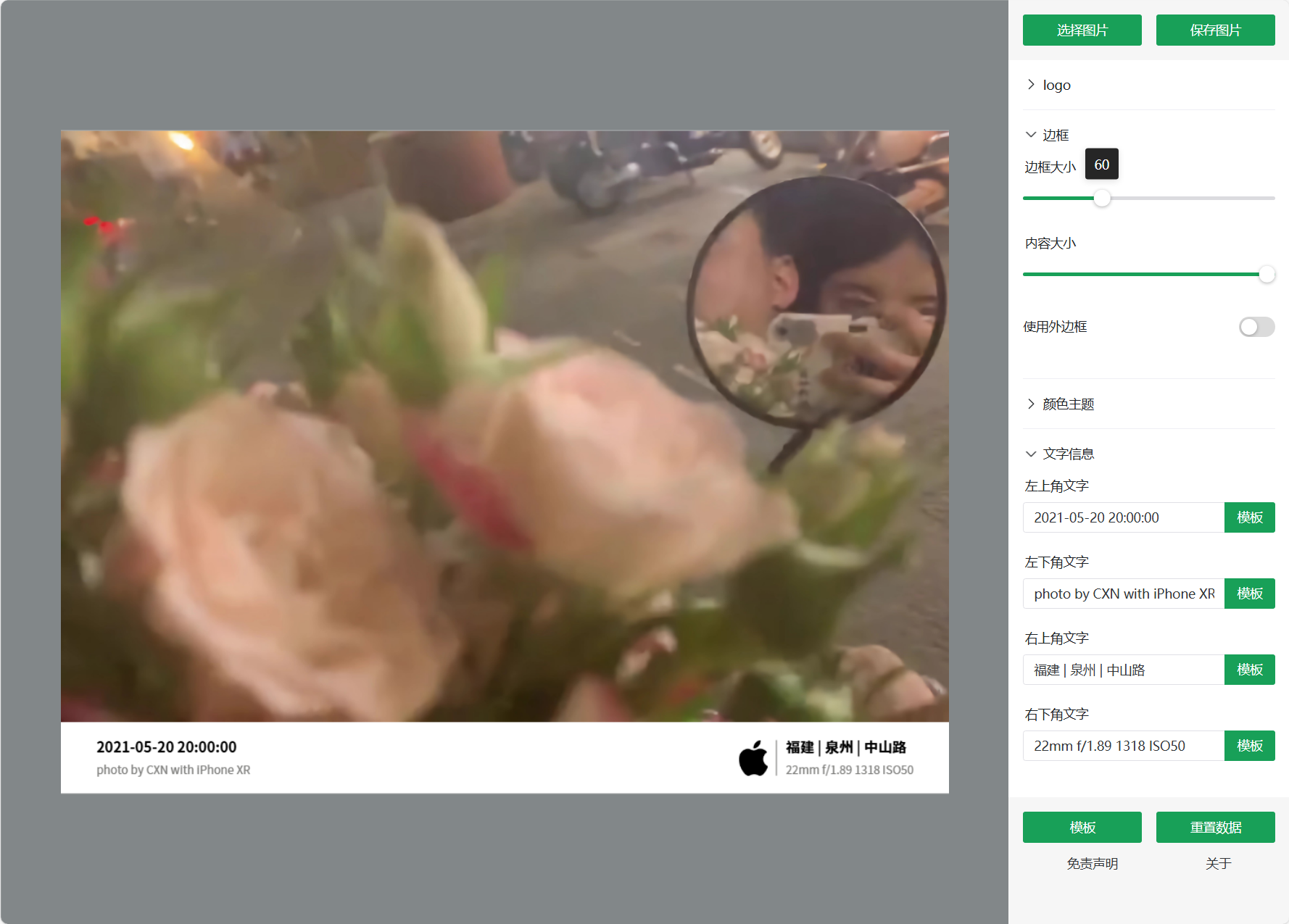
为了解决这个问题,我首先把照片裁切成3:2的比例,然后使用这个在线logo添加工具:milai.drtk.cn/logo/milai-frame
该工具的原链接为xxbiji.github.io/logo/milai-frame,GitHub地址为:https://github.com/xxbiji/logo
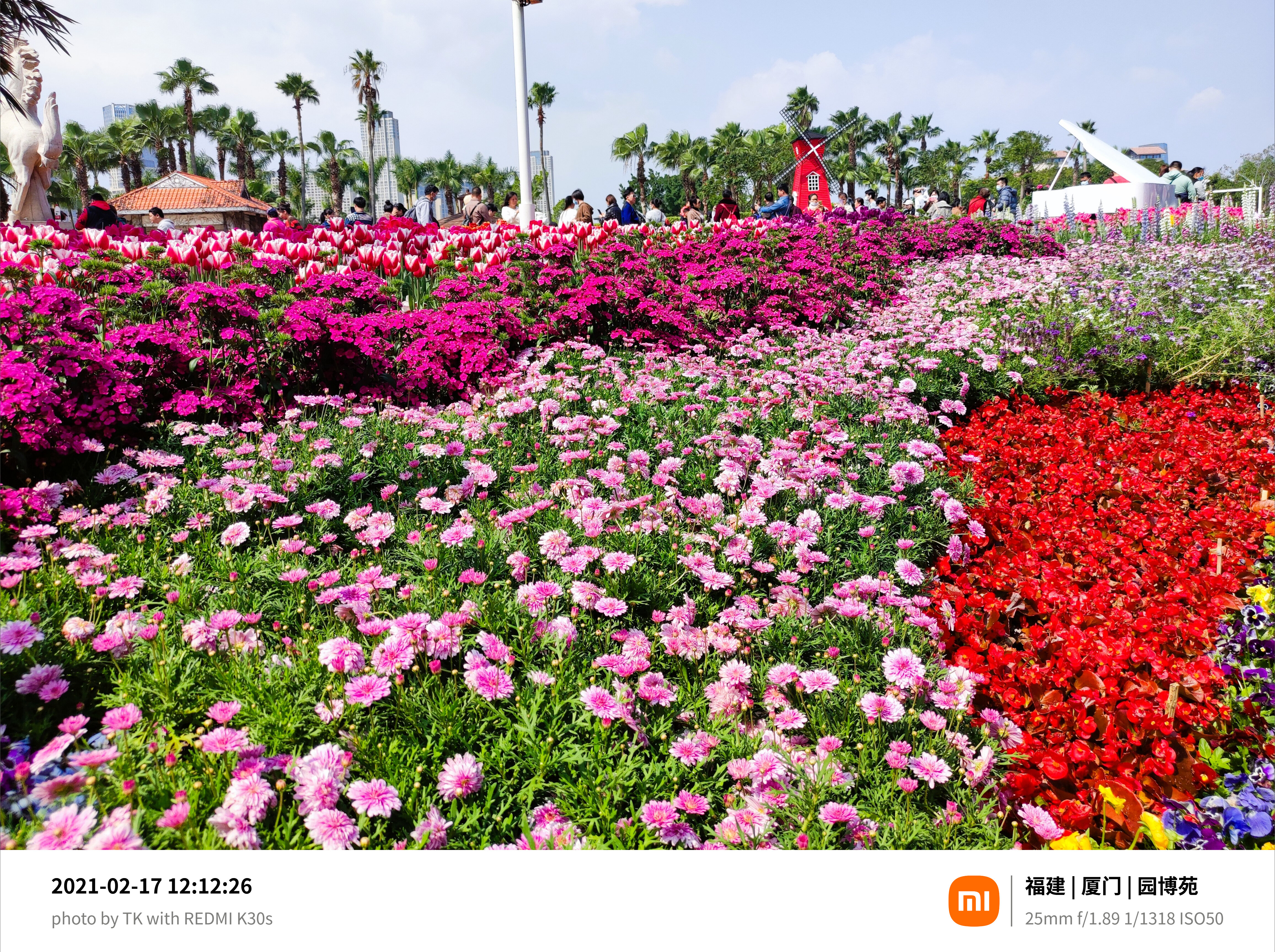
部分参数设置如下,最主要还是边框大小设置成60。logo调为自动,左上角文字可以使用模板中的{dateTime},左下角文字为:photo by XXX with {make} {model},右上角文字为省份 | 城市 | 地点·详细地址,右下角文字为:{focalLength}mm f/{F} {S} ISO{ISO}
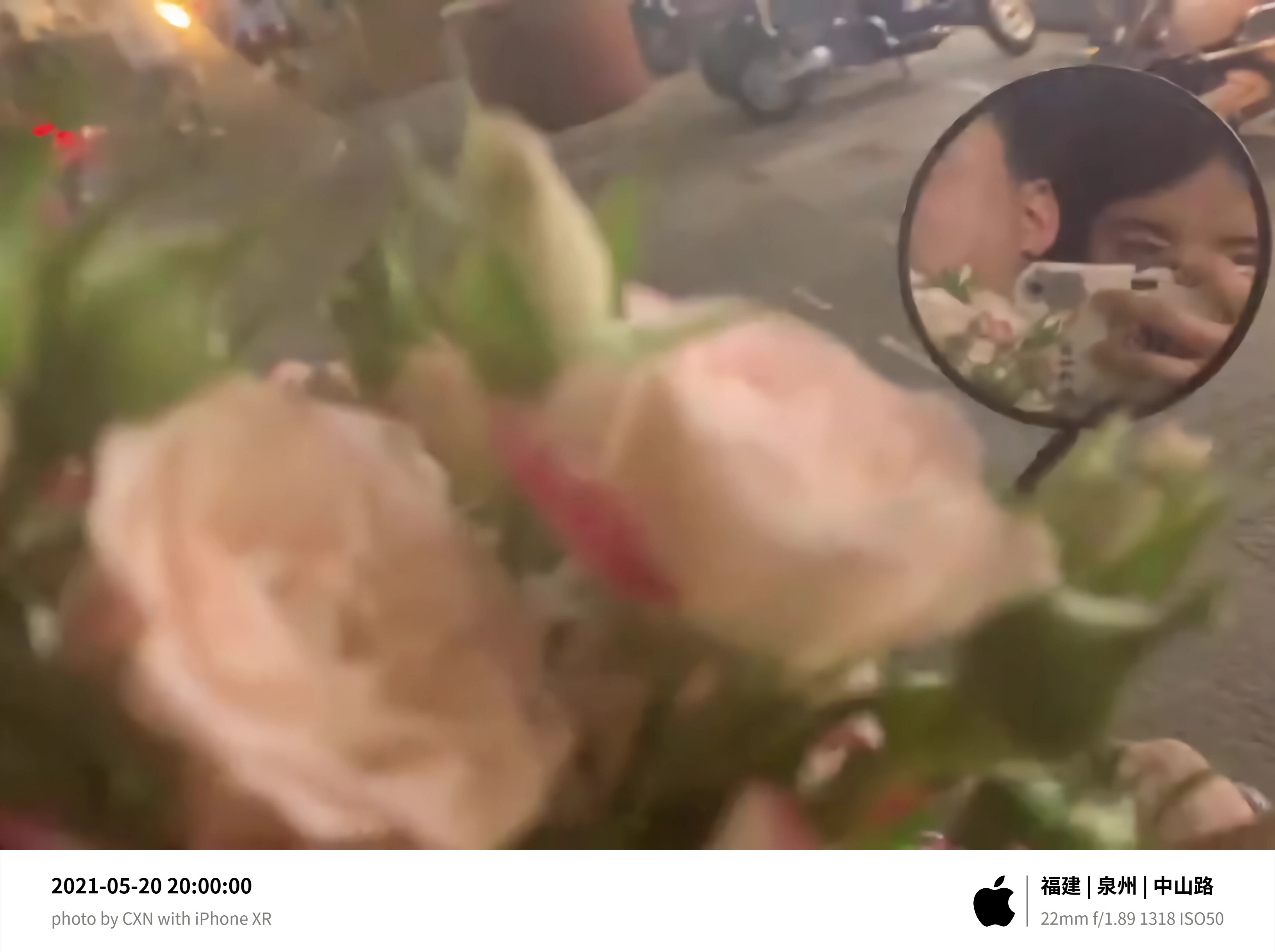
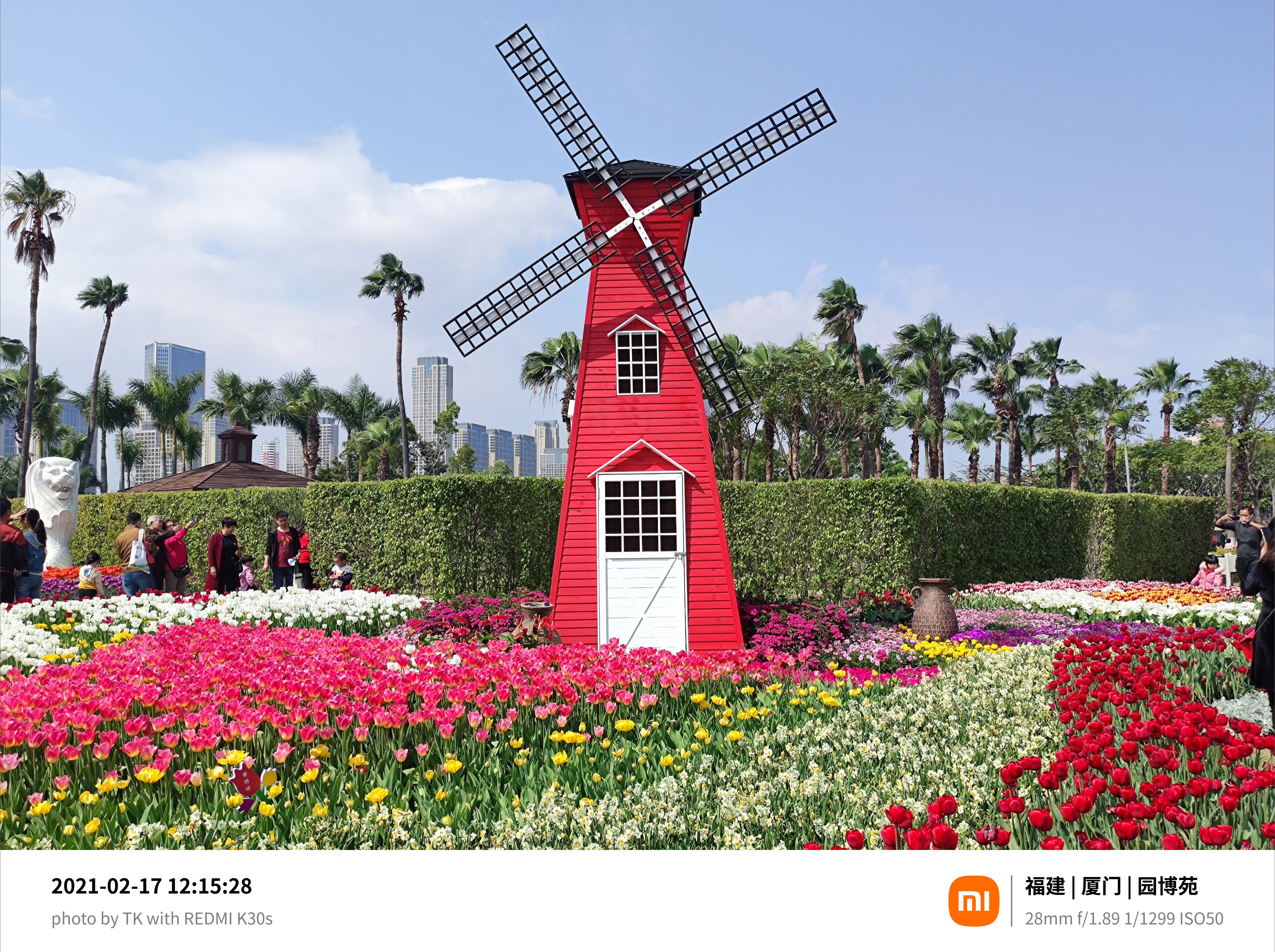
最终的成品照片接近4:3比例,一下为部分样图:
最后就是去淘宝打印了,其实本来是想买个打印机的,看中小米的照片打印机1s,但是看网上说很容易吃灰,而且打印机+耗材套装就750,耗材100块80张,感觉没有淘宝打印划算。
先在淘宝上打印试试看吧,期待好结果。
分享文章
生成精美分享图或复制链接,与更多人分享本文。
继续阅读
换条路线
从其他文章中稳定抽取
最后更新于 ,距今已过 420 天
部分内容可能已过时